The „External files for media library“ plugin has evolved over time from a small application into a comprehensive tool. It can help to solve many different use cases in connection with files in WordPress. Here I explain the concept behind it to show the possibilities it can offer for many WordPress-based projects.
The origin
To understand the concept, you need to understand something of the history of its creation. A few years ago, I had the plugin Download list with icons has been developed. This enables the output of files in a convenient list in the block editor. You assign files from the media library to the block and then display them.
Interestingly, many of the users of this plugin work in the scientific field. Here, for example, it is about PDF-based documentation of publications. No problem with the plugin. But scientific institutions like to store such documents centrally in one place so that they can be updated and distributed at the same time. This resulted in a completely new requirement for me:
Users of my plugin needed a way to add URLs to the download list block 😒
I first tried with ReactReact JavaScript program library for the creation of web-based user interfaces to create a way of inserting this directly into the block. However, I failed, mainly due to the user interface, which was simply not suitable for this.
The basic concept
First of all, I looked around to see if there was a plugin somewhere in the WordPress plugin repository for this very purpose. Interestingly, I found a few small ones, but they were extremely outdated. For example, they enabled the download of a file via FTPFTP File Transfer Protocol in the media library. It wasn't quite what I was looking for. And the way these plugins were programmed didn't meet my quality standards or those of the WordPress repository, which has changed for the better in recent times.
So a new plugin was created: External files in the media library. I used this to extend the media library with the option of specifying URLs for files that could then be used in the project like normal media files.
Initially, I simply downloaded the files from the URLs provided and saved them in the media library. However, this did not correspond to the goal described above of leaving the files external. So I looked at what I could do to save external files as such in the media library - and it worked surprisingly well. So I came up with my basic concept for the plugin:
Store the URL of external files in the media library, not the file itself.
Why URL-based?
Files on the Internet are all referenced with a URL. This can be directly accessible or provided with some form of access protection. But they all have URLs.
Why not use the „Embed“ block?
This allows you to integrate wonderful external content into your own website. But it does not enable the linking in my block for the download list.
The evolution of the plugin
So I had the actual goal of adding external URLs to the plugin Download list with icons to be able to use the plugin. Sure, it's another plugin that you have to install - but anyone who needs it will use it. And so I started to expand it bit by bit, mostly out of my own desire, as I see it as a technical challenge for me. In the meantime it has far exceeded the original intention of being a support for my other plugin - but both are still compatible with each other.
Protocols
URLs naturally also use different protocols. HTTPHTTP Hypertext Transfer Protocol is familiar to everyone, and FTP still means something to some. There are also HTTPSHTTPS Hypertext Transfer Protocol Secure, SFTPSFTP Secure File Transfer Protocol, FTPSFTPS Method for encrypting the File Transfer Protocol (FTP), SSH and others (even something like Gopher). Most of them are access-protected, some are only optional. So I started to support these protocols in the plugin.
What is particularly helpful in this development is that WordPress itself already has everything you need. With the WP_Filesystem() based objects, you can easily query a wide variety of protocols. Some of them, of course, set corresponding PHPPHP PHP is a scripting language with a syntax based on C and Perl, which is mainly used to create dynamic websites or web applications. https://de.wikipedia.org/wiki/PHP-modules. But I didn't have to reinvent the wheel.
And so support for many different protocols was quickly added to the URLs.
File types
WordPress itself only allows the upload of certain file types during a fresh installation. PDF, JPG, PNG and others are commonplace for most users. I didn't want to extend these rules with my plugin, as External files for the media library is intended for external files and not for managing file types - that's why there's other very good plugins. So my plugin accesses this list from WordPress (which other plugins can extend) to check whether an external file is permitted. In the plugin settings, you can at least choose which format WordPress supports for external files.
Services
Up to this point, the plugin has worked extremely satisfactorily, I began to think bigger. What do WordPress users use to manage their files outside of WordPress that they want to integrate into their project? How could I make their work easier? I came across various service providers that make it possible to manage files. And how do you access them externally? Yes, via API.
So I started, piece by piece, to find service providers like DropboxDropbox Online data storage, Google Drive, Google Cloud Storage and AWS S3 into the plugin. Again, these are URLs of files that I received via API - so no problem for the basic functions of „External files for the media library“. The main effort in the implementation consisted of getting to know the respective API and connecting it.
As I rarely or never use these platforms myself, I was entering uncharted territory - but that's exactly what fascinates me about IT: the possibilities you have without knowing about them and then getting to know them.
Convenient file views with React
Everything I have described up to this point involves activities in the background. Objects and tasks are created in the plugin that have no visual output for the user in the WordPress backend. But I also had to provide the user with an interface for the services so that they can see what files are there and select from them.
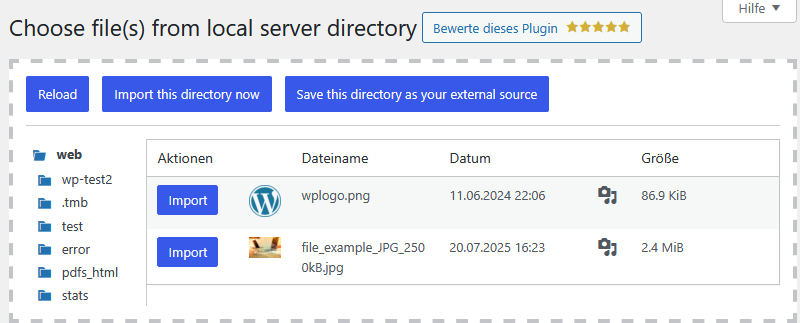
This resulted in a React-based tool called „Easy Directory Listing for WordPress“ what with GitHubGitHub Software development platform as composercomposer application-oriented package manager for PHP package is available. This is used by my plugin to handle all file listings in the backend. It provides a tree on the left and the file list on the right. There are also options for importing and a few other things.
Compatibility with other plugins
Another major shortcoming of the media library in WordPress is that you can't organize files there. They are just there without categorization and classification. This can be solved with various plugins:
- https://de.wordpress.org/plugins/filebird/
- https://de.wordpress.org/plugins/ifolders/
- https://de.wordpress.org/plugins/folders/
- https://de.wordpress.org/plugins/real-media-library-lite/
... just to name a few, there are many more. Since I am aware that users of my plugin may also want to categorize the external files, I created compatibility with many of these third-party plugins. This allows you to specify during import that and where you want to categorize a file if you use a plugin for directories in the media library and „External files in the media library“ has support for this.
In addition, there is also compatibility with WooCommerce with its CSV-based import and various other plugins that handle files in the media library.
Synchronization
After the manual method worked so well for the various sources, I also started to consider an automatic method. The use case could be, for example, that you want to update a gallery automatically - simply because there is a new file in an external source. The plugin can now also do this and offers it for almost all external sources.
Exporting files
And while I'm on the subject of file handling: until now, the plugin could only fetch files into the media library. But what if you also want to save a file from the media library externally? The classic case of offloading files. Since I already had the connection to the sources, it was easy to enable the export of files to them.
Licensing as a challenge
In early 2026, I asked some friends to test the next incarnation of the plugin. I had been working on an update for 7 months by then and wanted to finally complete it. The feedback was mixed. Some were overwhelmed by the possibilities and didn't know where to test anything. Others welcomed the many well-formulated instructions (all in English at the time) on how to use the functions.
I then wanted to release version 5.0.0 of the plugin directly. The package was a gigantic 6.8 MB in size and contained all the required libraries. This resulted in 2 problems that I was not even aware of before:
- Uploading the update to the WordPress repository via SVN is not possible, as a timeout occurs after around an hour. This cannot be bypassed either - it is fixed. I heard that the Gutenberg team had already failed years ago.
- Because I had to look at the plugin files again due to their quantity, I realized that some of the libraries used are not GPL-compatible.
The solution was obvious: I split the plugin. The non-GPL-compatible libraries were moved to separate plugins that I could host on GitHub. This also included any support for AWS S3-compatible cloud storage. But this directly resulted in some advantages:
- The functions of the plugin are no longer as overwhelming as some testers reported.
- The package had become much smaller and can now also be published in SVN.
- I do not take any risk of mixing with non-GPL-compatible libraries, which could lead to the plugin being blocked in the repository.
- I can encapsulate the functions for individual external sources in my own plugins, which makes it clearer for me and also easier to maintain.
- Other developers can contribute their own plugins to provide external sources for my plugin.
After a few weeks, the plugins were now ready for use. The plugin had changed again, but in my view to its advantage.
In conclusion
The concept I formulated above has changed due to the many possibilities that the plugin now offers. After more than 3 years of development, I would outline it as follows at the beginning of 2026:
Optimization of the management of files in the media library with external sources.
Leave a Reply