The plugin enables the use of icons on the files that you want to make available as downloads in the frontend. In addition to several supplied icon sets, it is also possible to store your own icons. This is described below.
Your own icon set
Before you can store your own icons, you must set up an individual icon set. This will then be assigned to the download lists later.
- Go to Download list Icons > Iconsets.
- Add a new icon set in the form on the left. Practically, you only need to enter the name, everything else is optional.
- Save, done.
Note: the name of the icon set is only visible to you. You should choose a name that suits you so that you can always recognize which icon set it is later.
Add the first custom icon
- Go to Download list icons > Add new icon.
- Give the icon a name. Again, this is only relevant for you.
- Then select the icon graphic.
- Also select the file type for which the icon is to be used.
- Select the icon set you have created in the box on the right to assign the icon to it.
- Save the new icon.
Using the icon set
Now look at a page in the frontend where you are using a download list. Edit this page and take a look at the settings for the block:
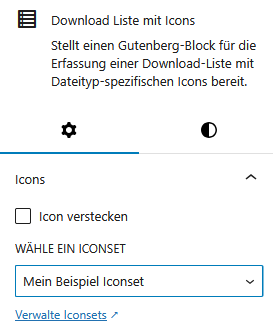
Now select the icon set you have created - done.
Leave a Reply