
The plugin brings a very influential import dialog with which you can influence the behavior when importing external files into your media library.
Overview
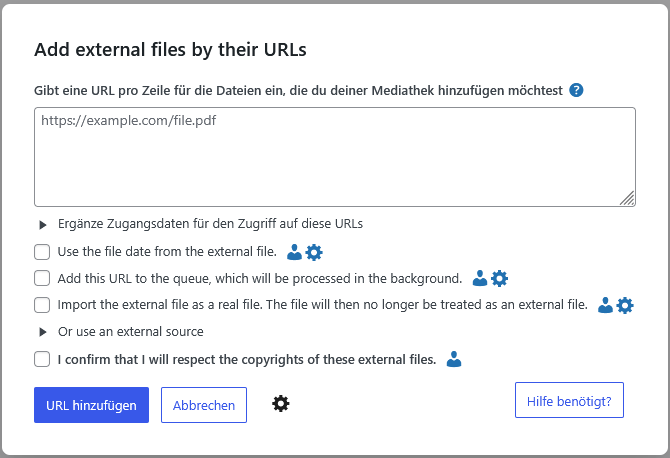
The import dialog allows you to configure how the files that you want to integrate into the media library should be handled. It offers you numerous options, which are described in more detail below.
Note that the import dialog offers a different number of options depending on where it is called up. When using a service, for example, only the technically relevant and possible options are displayed.
Use
The options displayed in the dialog do not require any mandatory information other than confirmation of the authorship of the files. It is up to you which options you choose here. Decide depending on what you want to do with the external URL that you want to integrate.
Once you have made your decision, click on „Add URL“ below to continue the process. The plugin will then take over the task of integrating the external URL into the media library for you, taking into account the options you ticked in the import dialog.
Individualization
For several of the options, it is possible to save default values in your WordPress profile. This means you don't have to reset the options every time you call them up. To do this, click on the user icon to the right of the options to go to your WordPress profile with the settings for this.
The options
Access data
Expand this option if the URL you have entered has password protection. This can happen when using a HTTPHTTP Hypertext Transfer Protocol-URL must be an Auth Basic password protection. With a FTPFTP File Transfer Protocol-URL, it can be its FTP access data. Check the box and enter the access data in the fields below.
Use the file date of the external file
As the name suggests, if checked, the file is saved with the date information of the external file. If no such date is available, the current date is set as usual.
Add file to the queue
If checked, the file is added to the queue instead of being imported immediately. WordPress then takes care of processing this job.
Real import of the file under the external URL
If checked, the file will not be imported into the media library as an external URL but saved as a real file in the media library. The file will then no longer have a link to the original external URL; it will also no longer be managed by the plugin.
Use an external source
Expand this option to see which external sources are still offered by the plugin. You can also use this to access external files in API-based services such as Google Cloud Storage or DropboxDropbox Online data storage access.
Confirm authorship
This is the only mandatory field in the options, but can also be disabled in the user settings. This checkmark serves as a reminder that you should only include external files for which you have permission to use.
Leave a Reply