
The „External files in the media library“ plugin allows you to use files from various external sources, such as Google Cloud Storage. How to do this is described below.
Establish connection
First, you need to establish a connection to your Google Cloud Storage. Depending on the settings in the plugin, this connection is saved for all WordPress users in the project or only for your profile.
For all users
- Go to Settings > External files for the media library > Services > Google Cloud Storage.
- Click on the link here to go to the credentials in your Google Cloud Console: https://console.cloud.google.com/apis/credentials
- Find the service account here that you want to use for the connection. Create a new key for this account and download its JSON file.
- Open the downloaded JSON file in a text editor of your choice and copy the content.
- Paste the content in the WordPress backend where you went in point 1.
- Add below the name of the bucket you want to open.
- Save, done.
Just for you
- Open your WordPress profile, usually via the user icon at the top right.
- Search there for „Google Cloud Storage“.
- Click on the link here to go to the credentials in your Google Cloud Console: https://console.cloud.google.com/apis/credentials
- Find the service account here that you want to use for the connection. Create a new key for this account and download its JSON file.
- Open the downloaded JSON file in a text editor of your choice and copy the content.
- Paste the content in the WordPress backend where you went in point 2.
- Add below the name of the bucket you want to open.
- Save, done.
Don't have a service account in your Google Cloud Console yet?
Then create this as follows:
- Call up your Google Cloud Console: https://console.cloud.google.com/apis/credentials
- Click here on Create login data > Create service account.
- Give the service account a name under which you want to find it again and click on „Create and continue“.
- Under Permissions, select „Storage Bucket Viewer“ and click „Done“.
- Then set up a key as described above and transfer its JSON details to the plugin settings.
Your existing service account has no access rights?
Check the following in your Google Cloud Console:
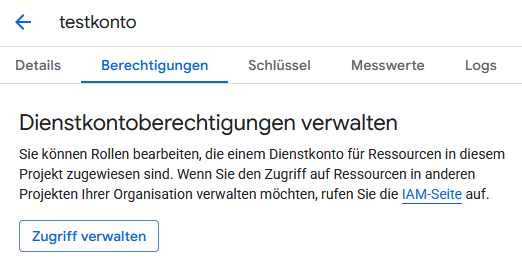
- The service account requires at least „Storage Bucket Viewer“ authorization so that the „External files for the media library“ plugin can access the data. You can find the permissions in the Google Cloud Console when editing the service account under „Permissions“.
Connect and view files
As soon as the connection is established, you can list the files in your Google Cloud Storage under Media > External files > Google Cloud Storage.
Importing and using files
You can then also import the listed files into the media library. Please note that although these are saved here as external files, they are actually integrated into the media library. This is because files in external sources that are access-protected cannot be made available to website visitors.
Leave a Reply