
The following scenario:
You need a gallery view for a WordPress website. However, the photographer of the images to be displayed should not have access to the backend. Nevertheless, images prepared by the photographer should be automatically displayed as a gallery without any action on your part.
Not possible? Yes, it is!
The combination makes it
We need:
- CatFolders - WP Media Folders
- External files in the media library
- A directory in which the photographer stores the images. This can be in the website's own hosting or via FTPFTP File Transfer Protocol or GoogleDrive.
First, we install the two WordPress plugins. This is done quickly - neither requires any further configuration.
The configuration
Now let's go through the following steps (and yes, it looks like a lot, but once you've done it, the scheme is clear):
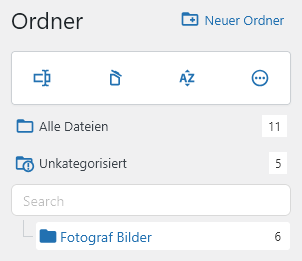
- In the WordPress backend, go to Media > Media library and create a folder using the options provided by CatFolder. It's best to name it so that it's clear to you what it's about. I call it „Photographer images“ here.
- Now go to Media > „Directory archives“ in the WordPress backend. Click on the „Add directory archive“ button there.
- Now select the data source. In my example here, I simply use an FTP connection.
- Log in to the interface via FTP. After a short moment you should see the list of photos already in the directory.
- Click on „Save as directory archive“ above the list. In the confirmation window you will get a link back to the list of directory archives which we will follow.
- You will now see your entry for the external connection in the list of directory archives. Click on the „Configure“ button here.
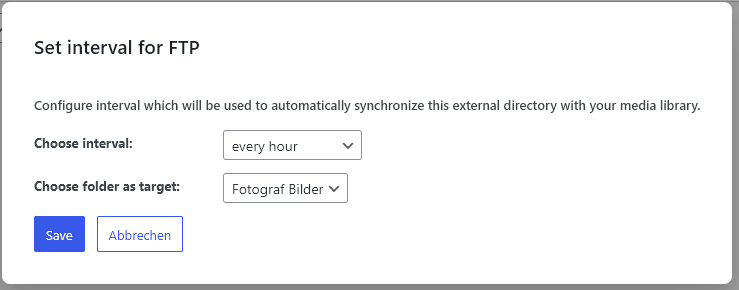
- In the new flyout, you will see a point where you can select the destination folder. Now select the folder you created in the first step. I choose „Photographer pictures“ here. Save the entry - done.

Interim conclusion
The basic configuration is now complete. We have established the connection to the external source and we have created a folder in which the images will end up.
What is missing now is a test of the synchronization, the output of the images in the frontend and the automation. So let's get to work.
Test connection
Under Media > Directory archives you will see your connection to the external source. Click on „Now“ in the „Synchronize“ column. Confirm the request and wait for the next response. In the best case, the plugin will fetch External files in the media library will remove the images from the directory and add them to the media library as external files.
Then check under Media > Media library whether the images have arrived in the folder you created.
Create gallery
The Catfolders plugin comes with a nice block that you simply have to select in the editor to display the images from a folder. But first things first:
- Go to Pages and select the page in which the gallery should be displayed. If necessary, create a new one.
- In the block editor, search for the „CatFolders“ block and insert it in the desired position.
- In the sidebar on the right, select the folder you have created for the images. In my case, this is „Photographer images“.
- You should immediately see the already synchronized images.
- Save the page - done.
Test synchronization
Now, of course, it is worth testing what happens when a new image is added. I would recommend the following procedure:
- Upload a new image to the external source folder.
- Then go to Media > Directory archives in the WordPress backend and click on „Now“ for your connection.
- Wait until the synchronization is complete.
- Then go to the page in the frontend where the gallery is displayed. You will see the newly inserted images here.
Set up the automatism
The very last step is to activate automatic synchronization without any action on your part. There is still some configuration to do:
- Go to Media > Directory archives and click on „Configure“ for your connection.
- In the field for the time interval, select the desired time interval at which WordPress should start the synchronization.
- Confirm the setting by saving.
- Now just click on „On“ in the „Synchronize“ column to activate the automatism.
Conclusion
For some use cases, a plugin alone does not offer the solution. But in combination, plugins can provide powerful solutions. My plugin External files in the media library offers a versatile tool for completely different situations with synchronization from version 4.0.0.
Leave a Reply