With the plugin „External files in the media library“, it is possible to save all files within a multisite installation in a shared media library - accessible for every subsite within the multisite network. This makes it possible to avoid multiple file storage and thus save disk space. How this works is described in this article.
Preliminary remarks
The „External files in the media library“ plugin is actually designed to integrate external files into the WordPress media library in a reliable way so that they can be used anywhere in the project. From the perspective of individual websites, „external“ also includes files that are simply located on another website. In a WordPress multisite, there are theoretically any number of websites that are located in parallel in the same hosting area, but otherwise do not see each other.
The idea of enabling the WordPress multisite as a separate external source within the „External files in the media library“ plugin came to me after a conversation at the WordPress Meetup in Leipzig. The implementation was surprisingly quick, as the plugin already has everything I needed. I only had to enter the network-specific settings and use existing and frequently used options.
Prerequisites
To implement the descriptions in this article, you need a WordPress multisite with any number of websites in it. You must be logged into this as a super administrator, to install and activate the plugin and make the settings.
Warning
My recommendation would be not to set this up in existing projects, but only for new installations. The reason for this is that existing files may be lost as a result of the adjustments made by the plugin.
Preparations
- First create a backup of the entire project. This is always recommended anyway.
- If you are unsure whether it is right for you, it is best to try it in a test system.
Furnishings
Installation of the plugin
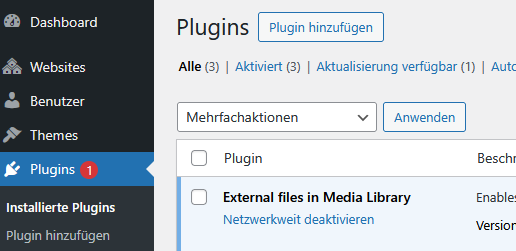
Install the „External files in the media library“ plugin as usual under Plugins as a super administrator and activate it network-wide.
You should then have this view under „Plugins“:
Interim result
- Authorized users can upload external files to the media library in each website of the multisite.
- The authorizations for this are the same per website as for a single installation and can be adapted according to your own wishes.
- Note that the super administrator always has full access to all settings on all websites. This is a property of this role in WordPress and is not affected by the plugin.
Activate standardized media library
- Call up the network administration as a super administrator.
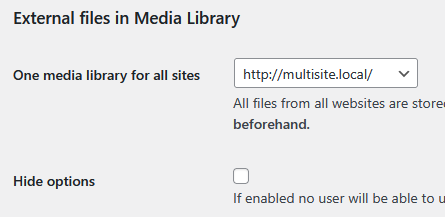
- Go to Settings and scroll down to „External files in the media library“. Here you will find the network-related settings of the plugin.
- Under „One media library for all websites“, select the website that is to serve as the primary media library.
- Save the settings.
Interim result
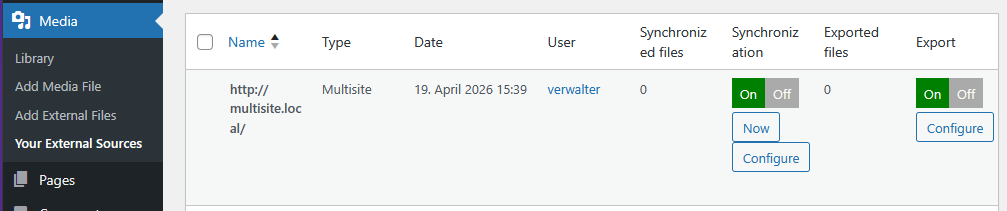
- In every website except the selected main website, the main website has been created as an external source. Export and synchronization settings are stored and activated for each of them. For the export, the selected main website has been defined as the export destination for all files to be added.
- In the same websites, nobody is allowed to access the plugin settings (not even the administrator, but the super administrator).
- External URLs or other external sources may also be stored in these websites. As with normal uploads, these are stored in the central media library.
- No settings have been adjusted in the main website.
The saved settings can be seen in every website under Media > Your external sources:
A first test
- Go to the backend of any website that is not your main media library page.
- Go to Media > Add media file. You will see a note below that the files will be saved in the main page when uploaded.
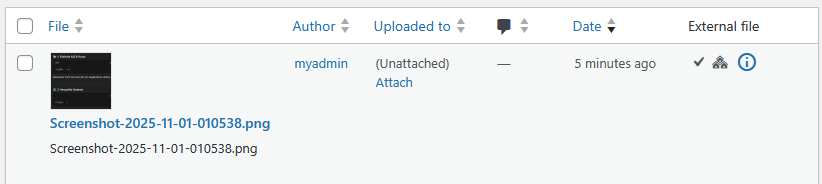
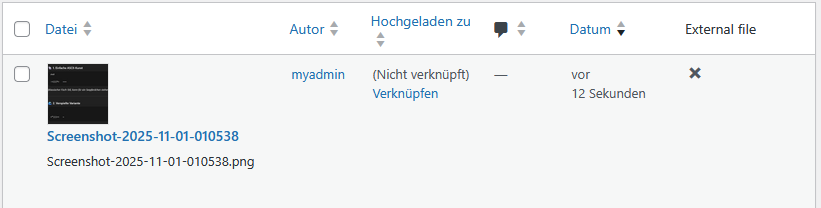
- Upload a file as usual and then open the media library. You will see the file there with the note that it has been saved externally.
- Then go to the website that serves as the central media library. Look here in the media library and you will see the file you have just uploaded. It is not treated as an external file, as this is the source for all other websites.
Synchronization
To ensure that every website in the network knows which files are available, the synchronization function in the plugin is used. This synchronizes the available files between the media libraries in the network at regular intervals. The files from the central media library are only stored as external files in the other websites and not as actual files in the file system.
Synchronization runs once an hour. The setting for this can be adjusted for each website.
Further restrict authorizations
You may want to prevent website users from integrating other external sources and then using them instead of the main media library that you have just set up. There is also an option for this in the plugin.
- Call up the network administration as a super administrator.
- Go to Settings and scroll down to „External files in the media library“.
- Here you will find a „Hide options“ checkbox.
- Check this box and save the settings.
Setting this setting now means that the permissions managed in WordPress for all roles for all websites are restricted in such a way that they can literally only upload files to the media library. They can neither add external URLs nor call up external sources, nor can they save these as additional sources.
But the URLs of the files ... ?
Each file stored in the central media library in this way is treated like any other external file with regard to its URL. The plugin uses its own proxy to disguise the URLs for accessing users and at the same time to enable data protection-compliant access. This means that, for example, when using different domains in a multisite, you cannot see from the outside that the file is actually stored somewhere else.
Conclusion
I have shown how you can use a media library within a multisite installation with the „External files in the media library“ plugin. It can be used free of charge. If you have any questions support forum report.
Incidentally, more could be done at this point: In the website that you use as the main media library, you could store an external source in which all files are to be saved. This would allow you to outsource all files from all multisite websites to an external service provider with more storage space and manage the whole thing centrally.
Leave a Reply